


| Show/Hide hidden text |
One of the keys to a successful website is an attractive appearance. First impressions count, and new visitors' opinions on your website will be largely influenced by its graphic layout, before they even start to look through the contents. A well thought-out and professional-looking design gives the impression of a good quality site that is worth looking at.
In WebSite X5 , you can choose to create a new website starting from a predefined template and select from over 100 templates installed with the program.
All the preset Templates have been carefully designed so that you can create attractive and professional websites. Every template is optimized for responsive website creation. Each Template is an actual, full mini-site that works perfectly and is complete with graphics, pages, and content. Templates can be explored thanks to the preview opened in the browser window locally. This way, you can choose the best template for your project quickly and easily. Once you've selected your Template, you can start customizing each element and import your own content, to quickly create a finished website that you can publish online.
Once you select the Tempate you would like to use, click on Edit so start the creation of a new Website. The new Projet will be stored using the WebSite Title specified in the relative field on the Website Settings window. It will then be possible to save the Project with the Save sempre button available on the top part of the program window.
|
When saving the project it isn't necessary to report the path because the Projects are all automatically managed by the Program ans saved in the Projects folder reported on the Preferences window. |
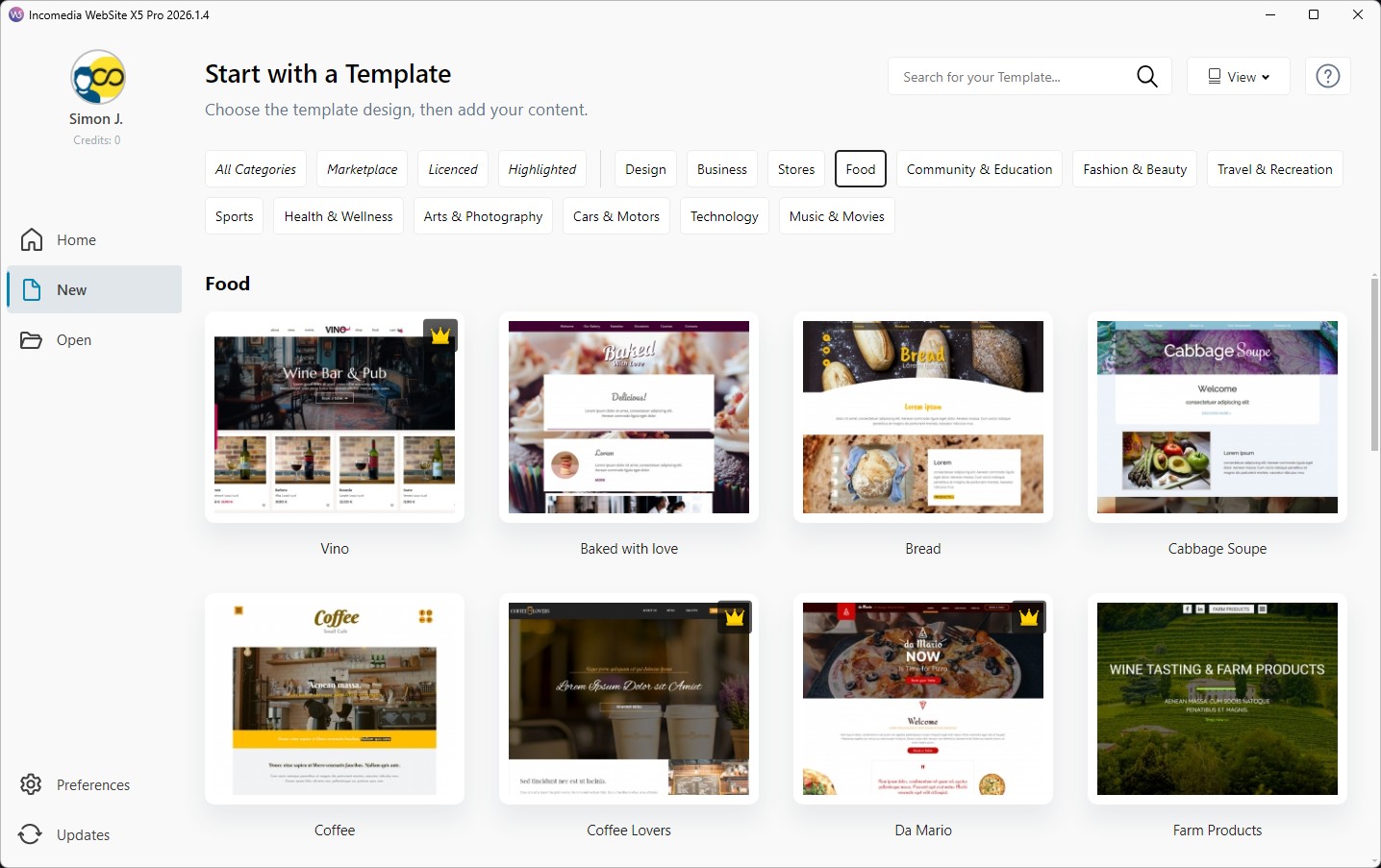
The Create a new Project window lets you browse the libraries of available templates and choose the one you want. You can speed up your search for the right template by using filter, which has a number of options:
You can also use filters for template categories: Design, Business, Store Online, etc. Finally, with the search field, you can search Templates by name. All the Templates that match the applied filters or the search criteria are displayed as static preview images: their size can be adjusted using the View command.
Placing the mouse pointer over any preview image shows two buttons:
As mentioned, the Preview allows you to navigate through the Template so that you can appreciate both its graphical and functional aspects.
The buttons available in the local browser window allow you to:
|
In order to provide you with more solutions, we regularly release new Template which can be both free or paid. Paid Templates can be easily identfied thaks to the specific icons Once you've purchased it, the Tempate will be used to create a new Project. |
As already mentioned, all the default templates are optimized to support responsive website creation. This means that, if you decide to create a responsive website, some breakpoints are enabled automatically, according to the selected template: there is a ready-to-use version of the template for each viewport determined by the breakpoints, in which the elements that are present are suitably re-arranged according to the available space. You can add/remove or change the existing breakpoints and modify the template structure and how objects are arranged in the header and footer for the various viewports. It is important to remember that the template versions for the Desktop and intermediate viewports are set in pixels, whereas the Smartphone viewport is flexible so that it always occupies 100% of the available space. |
|
You need to be connected to the Internet to:
|
Read the guides:
- |
|
- |
|
- |







 : you can buy them both on the Marketplace or dirictly within WebSite X5 by using the Credits.