| Show/Hide hidden text |
With the widespread use of smartphones and tablets, most users now access websites from mobile devices. For this reason, when designing a new website, it is essential to plan from the start a structure that can automatically adapt to different screen sizes.
A website in which layout and content dynamically adapt to the device used (desktop, tablet or smartphone) is defined as responsive. This approach makes it possible to provide an optimal browsing experience in any context, improving both usability and search engine visibility.
Through the sections of this window, you can make your website responsive by managing breakpoints and the necessary settings. The available commands are organized into the following sections:
| ▪ | Breackpoint |
| ▪ | Text and margins |
|
In most cases, creating a responsive website is the recommended choice. Only in specific situations should you consider creating separate versions for desktop and mobile. WebSite X5 provides all the necessary tools to design responsive websites in a simple and controlled way, allowing you to adapt layout and content to different breakpoints. For more information, see Responsive Design. How do you create a responsive website?ow to create a Responsive Website |
In this section, you can efine the kind of website you want, which may be:
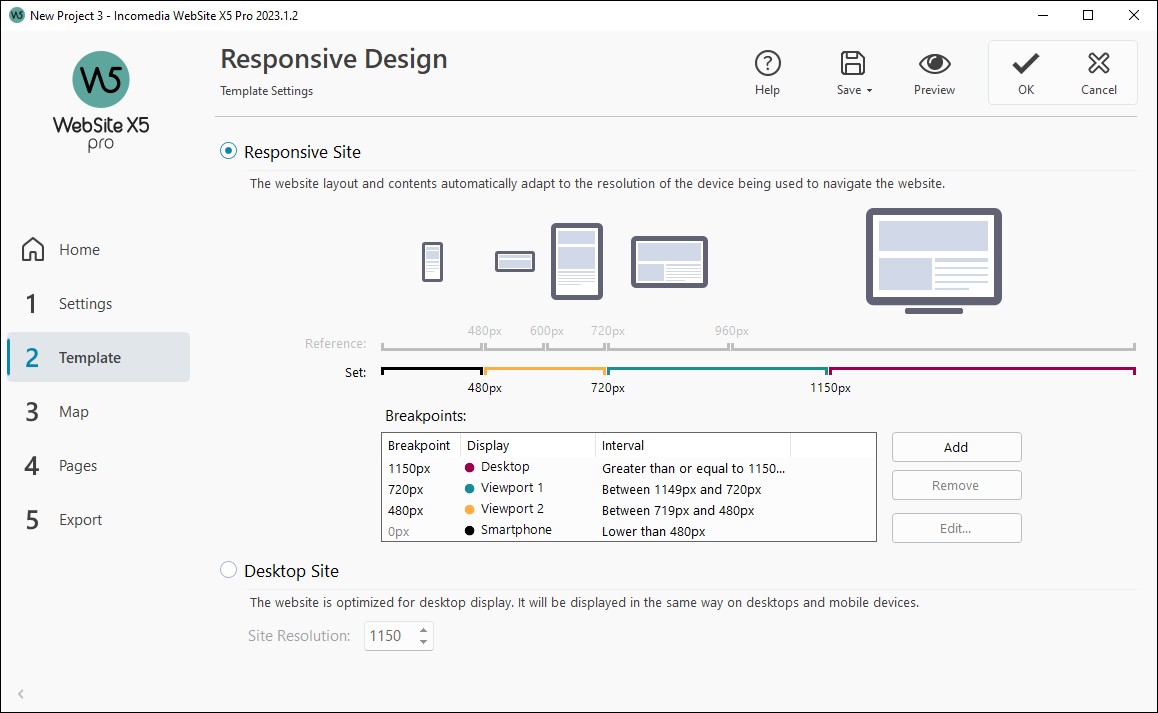
If you decide to create a Responsive Site, you need to indicate the breakpoints. A responsive website can be displayed on a number of devices that have differing screen sizes (resolutions). A breakpoint is a point at which, in the range of these varying resolutions, the website's page layout changes in some way to adapt its display to a different resolution (screen size). To help clarify this concept, the window below shows a diagram which arranges the main device types in sequence.
The breakpoints that correspond to the reference resolutions, which are commonly used for each device, are shown on the Reference Resolutions line:
Immediately below this line you can see the Selected Resolutions line that shows 3 breakpoints that are defined automatically when a new project is opened:
By default, the resolutions associated with these 3 breakpoints are automatically set according to the current template. On the Selected Resolutions line, the segments between two breakpoints, that correspond to the viewport intervals, are shown in different colors. For greater clarity, the same colors are used for the icons in the table in the Responsive settings window and on the Responsive Bar in the Template Structure window, and in the Browser that is used to display the website previews. The breakpoints are displayed on the Selected Resolutions line and they are also listed in a table with the following items:
You can use the commands alongside the table to work on the suggested breakpoints and resulting viewports:
If, on the other hand, you choose to create a Desktop Site, you must specify the:
|
Let's take, for example, a website which has a template that is 960px wide. The table shows the 3 default breakpoints which determine 4 intervals, corresponding to 4 different viewports:
For resolutions that are higher than the Desktop breakpoint, the template for the Desktop viewport is used (defined in the Template Structure window) and the contents are organized according to how the pages have been created in Step 4 - Pages.
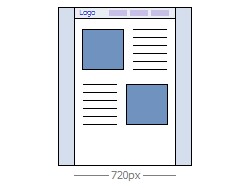
For resolutions between the Desktop and Intermediate breakpoints, the template adapts according to the settings given for this viewport in the Template Structure window. In this case, the width of the Page Contents is set at 720px but the browser window may reach 959px and the excess space is occupied by the Page Background. The objects in the pages are arranged as in the previous interval, corresponding to the desktop viewport.
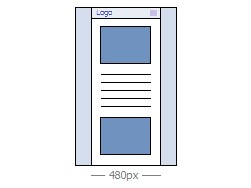
For resolutions between the Intermediate and Smartphone breakpoints, the website is linearized: this means all the objects are displayed one above the other (respecting the settings for their order and visibility specified in the Responsive settings window). As for the previous interval, the template assumes the settings given for this viewport in the Template Structure window: the width of the Page Contents is set at 480px but the browser window may reach 719px and the excess space is occupied by the Page Background.
The website continues to be linearized for resolutions that are lower than the Smartphone breakpoint. The template appears according to the settings for this viewport given in the Template Structure window and the page width is set as a relative value, and not absolute, so that it always occupies 100% of the available space. In linearized sites, the objects are all displayed one above the other (respecting the order and visibility settings specified in the Responsive settings window) and they are also set up to occupy 100% of the width.
|
If you choose to make the website responsive, the commands in this section allow you to manage how text and margins behave, so that their size is reduced proportionally to the available display space. The goal is to ensure optimal readability and spacing management in all situations. First, you need to enable the option Enable automatic reduction of text and margins. In this way, the program automatically adjusts some key aspects of the layout, such as: text size, line spacing, letter spacing, text distribution, margins and spacing. Once this is done, you can adjust the following options:
Automatic optimization is applied to the main elements of the website, including:
|
Read the guides:
- |
|
- |
Breakpoint. How do you correctly set the resolutions of a responsive website? |
- |
Text and margins. How do you automatically optimize readability and spacing in responsive web pages? |